Initial setup
When first switched on, the ATRON automatically starts initial setup. Follow the instructions on the display to set up the device step by step.
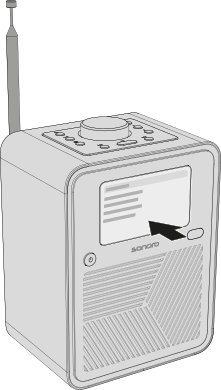
Setup steps
- Select a language
- Accept the privacy policy Information about data protection is available at: sonoro.com/datenschutzerklaerung-app
- Connecting to a network Once the ATRON has started, the WPS function is also available for a quick connection to a compatible Wi-Fi router.→ Further information can be found in the chapter Connecting to a network.
- Configure Placement EQ Adjust Placement EQ to the location of the ATRON. This optimises bass reproduction according to its position in the room.→ Further information can be found in the chapter Sound settings.
- Check for software updates
You can change network connections at any time under Settings → Network settings.
You can change Placement EQ at any time under Settings → Sound settings.
After successful setup, a welcome message appears on the display and the ATRON is ready for use.
Set the device name
We recommend assigning a custom device name so that you can clearly identify the ATRON in the sonoro app, supported Connect services and compatible smart home systems.
To do this, open:
Settings → Device info → Device name
Enter the desired name (e.g. Living room or ATRON) and confirm your entry.
→ Further information can be found in the chapter Device info.