Favorites

Up to 99 local favorites are available. For example, radio stations, podcasts, playlists, albums, tracks, or input sources can be saved as favorites. Up to 20 favorites can be saved for Spotify.
Saving favorites on the device
To save a favorite directly on the device, the desired source must be selected or the desired content must be playing.

Press and hold the FAV button until the favorites list is displayed.

Select an available preset.

Press the OK button to save the favorite.
Opening favorites on the device
Briefly press the FAV button to open the favorites list.
Select the desired favorite.
Press the OK button to start the favorite.
ℹ Saved favorites can also be opened via Home → Favorites . However, this menu can only be used to open favorites, not to save them.
Saving favorites using the remote control
To save a favorite using the remote control, the desired source must be selected or the desired content must be playing.

Press and hold the FAV button until the favorites list is displayed.
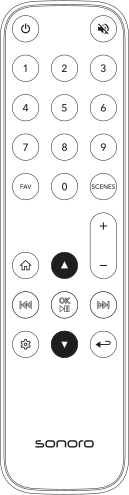
Use the navigation buttons to select an available preset.

Press the OK button to save the favorite.
Opening favorites using the remote control
Briefly press the FAV button to open the favorites list.
Use the navigation buttons to select the desired favorite.
Press the OK button to start the favorite.
Direct favorite selection using the remote control
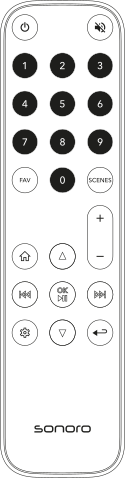
Presets 1–9
- Press and hold a number button to save a favorite.
- Briefly press a number button to open a favorite.
- Playback starts automatically after a few seconds.
Presets 10–99
- Briefly press the first digit and press and hold the second digit to save a favorite.
- Briefly press both digits in sequence to open a favorite.
Smart Home scenes using the remote control
In addition to local favorites, the sonoro remote control can also trigger Smart Home scenes. Up to 9 Smart Home scenes per device can be opened using the remote control.
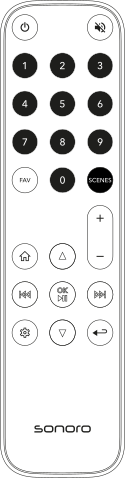
Open a Smart Home scene
- The device can be switched on or in standby.
- Press the Scenes button.
- Then, within 2 seconds, press a number button 1–9 to open the desired Smart Home scene.
Supported Smart Home systems can be found at: sonoro.com/smart-home
ℹ If the number buttons 1–9 are used without first pressing the Scenes button, they directly select local favorites.
ℹ Pressing and holding a number button saves the currently playing content to the corresponding local favorite preset.
Types of favorites
Two types of favorites are supported: local favorites and source-specific favorites.
Local favorites are saved directly on the device and can be opened at any time. For example, individual podcast episodes, radio stations, playlists, albums, tracks, or inputs can be saved as local favorites.
In addition, certain sources such as Internet Radio and Podcasts support source-specific favorites. These favorites are managed within the respective source and can only be opened there.
For example, an entire podcast, including all available episodes, can be saved as a favorite within the Podcasts source. Internet radio stations can likewise be saved as favorites within the Internet Radio source.
ℹ To save an Internet radio station or podcast as a source-specific favorite, press and hold the Play/Pause button during playback. You can then find the saved entries in the Favorites menu of the respective source.
ℹ Local favorites remain permanently saved and are still available after a restart.
ℹ For Spotify, a maximum of 20 local favorites can be saved. To save local Spotify favorites, you must sign in on the device or via the sonoro audio App. After using Spotify Connect for the first time, local Spotify favorites can also be saved directly.
ℹ The sonoro audio App can also be used to copy locally configured favorites from one device to all other devices on the network.
ℹ When copying favorites between the sonoro AMPLIFIER and the sonoro MAESTRO Quantum Signature or MEISTERSTÜCK 3, the sound settings (Bass, Treble and Balance) stored as factory-set favorites cannot be transferred or overwritten. This applies in both directions, regardless of the position of the sound settings in the favorites list. To copy favorites fully between these devices, first replace the corresponding sound-setting favorites on the MAESTRO Quantum Signature or MEISTERSTÜCK 3 with other favorites, such as music sources or playlists. The sound settings remain accessible via Settings → Sound settings even after the favorite presets have been overwritten.